
One thing I really like about Google Docs is its ability to highlight misspelled words. Google Sheets doesn’t do that. Made a mistake? No red squiggle to show you’ve made a spelling mistake. And when you’re selling said Google Sheets spreadsheets, spelling mistakes, make your products look amateurish.
In this post, we will cover how to check spelling in Google Sheets so that your spreadsheets look professional.
What this post covers:
- Built-in spell check via the Tools menu
- Chrome browser spell check
- Autocorrect: how it works and how to turn it off
- Your personal dictionary: adding, viewing, removing words
- Changing the spell check language
- What Google Sheets spell check does NOT catch
- Seller note: spell checking before delivering a template
- Frequently asked questions
So, let’s get started.
Method 1: Built-In Spell Check
This is probably the easiest and most effective method. This is the built-in spell check tool provided in Google Sheets. It scans cells for misspelled words and lets you review and fix each one.
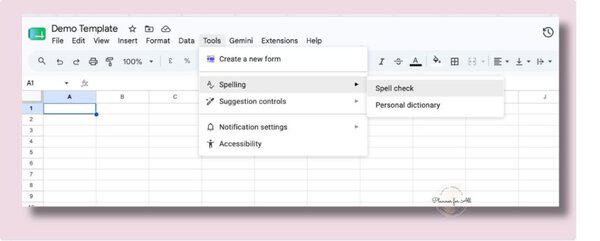
How to run it
- Click Tools in the top menu.
- Hover over Spelling.
- Click Spell check.
A dialog box appears on the right side of the screen. If Google Sheets finds a misspelled word, it highlights the cell containing it and shows the word with suggested corrections below.
If it identifies any misspelled words, it will prompt these options:
i. Change Replaces the flagged word with the highlighted suggestion. If you see multiple suggestions, click the one you want before clicking Change.
ii. Ignore Skips this instance of the word without changing it. The word is left as-is for this session, but will be flagged again the next time you run spell check.
iii. Add to dictionary Adds the word to your personal Google dictionary so it will not be flagged again across any Google Workspace app: Sheets, Docs, Slides. Use this for proper nouns, industry terms, abbreviations, or any word that is correct but not in the standard dictionary.
Scope options
The above step sans the sheet for selected cells or tab. When the spell checker reaches the end of its current scope, a prompt appears at the bottom of the dialog asking what to check next. Again, you have three options:
i. Rest of the sheet Continues checking the remaining cells on the current sheet that have not yet been reviewed.
ii. All sheets Expands the check to cover every sheet tab in the spreadsheet. Five tabs in your file means all five get checked in sequence.
iii. Done Closes the dialog and ends the spell check.
How to run spell-check on selected cell?
Select the specific range of cells and then run spell check. The tool will only check those cells first. When it finishes that range, it asks whether to continue with the rest of the sheet. This is particularly useful when you want to check a specific section (a notes column, a product description area) without reviewing the whole spreadsheet.
So, what happens if it doesnt find any spelling mistake?
It displays a small notification briefly at the bottom of the screen: ‘No spelling errors found.’ No dialog opens.
Keyboard Shortcut
If you’re like me, and prefer keyboard shortcuts for fast typing, then here is the shortcut to spell check without opening tool every time.
Shortcut to run spell-check on Google Sheets:
Windows / ChromeOS: F7
Mac: Fn + F7
One thing to remember, the F7 shortcut only works if you have enabled compatible spreadsheet shortcuts in Google Sheets.
To turn this on: go to Help – Keyboard shortcuts – Enable compatible spreadsheet shortcuts (toggle at the bottom of the dialog). Without this setting, F7 does nothing.
If the shortcut is still not working, go through the menu instead: Tools → Spelling → Spell check. It is two extra clicks and gets to the same place.
Method 2: Chrome Browser Spell Check (Real-Time)
While the above spell-check tool works in every browser and in Google Sheets, there is another shortcut if you use Google Chrome. Chrome has a built-in spell checker that works independently of Google Sheets. When enabled, it underlines misspelled words in red as you type, including inside Google Sheets cells. It’s the closest Google Sheets gets to the real-time spell check experience in Google Docs.
How to enable Chrome spell check
- Click the three-dot menu in the top-right corner of Chrome.
- Go to Settings.
- Click Languages in the left sidebar.
- Under Spell check, toggle it on. You can choose between Basic spell check and Enhanced spell check. Enhanced uses Google’s servers for deeper checking.
Using Chrome spell check in Google Sheets
Once you’ve enabled Chrome spell check with above steps, any text you type into a cell will be underlined in red if Chrome thinks it is misspelled. Naturally, next step is how to fix it? Simply, right-click the underlined word and select the correct spelling from the suggestions that appear.
While Chrome spell-check is handy, there is a limitation. This operates on the text input field, not on the rendered cell. It works when you’re actively typing in a cell (in edit mode) but does not scan cells or data you already entered. It won’t flag text that was already in the spreadsheet before you enabled it, or text that was pasted in. For a full scan of existing content, you’ll have to use the built-in spell check tool.
Managing Your Personal Dictionary
Every time you click Add to dictionary during a spell check, the word is added to your personal Google dictionary. This dictionary is shared across all Google Workspace apps, including Docs, Slides, and Sheets. The same dictionary is followed wherever you’re logged into same Google account.
In this section, let’s see how you can modify your personal directory.
Viewing and editing your personal dictionary
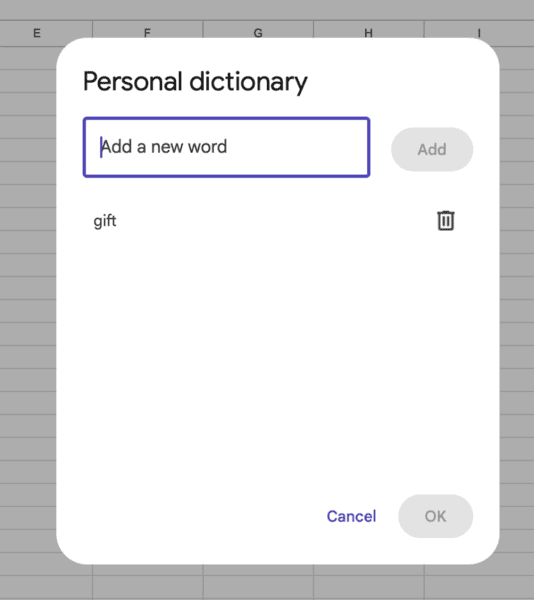
- Go to Tools → Spelling → Personal dictionary.
- A dialog opens showing all words you have added.
- To remove a word, find it in the list and click the X next to it.
- To add a word without running spell check first, type it in the text field at the top of the dialog and click Add.
The personal dictionary is particularly useful for:
- Proper nouns and brand names not in the standard dictionary
- Keep record of industry-specific terminology: SKU codes, technical abbreviations, niche terms
- Intentional unconventional spellings used in your product or brand
- Non-English words that appear regularly in your spreadsheets
Your personal dictionary applies to your Google account, not to a specific spreadsheet. Adding a word on one sheet adds it for all your sheets, all your Docs, and all your Slides. Removing a word removes it everywhere. There is no per-spreadsheet dictionary.
Changing the Spell Check Language
While Google Sheets spell check tool is powerful. it checks spelling against the language set for your spreadsheet. If your spreadsheet is in a different language than the default, or if you have a multilingual spreadsheet, then you need to set the proper language before running the tool.
How to change the spreadsheet language
- Go to File → Settings.
- Under the General tab, find the Locale dropdown.
- Select the country/locale that matches the language you are writing in.
- Click Save settings.
The locale setting affects which dictionary the spell checker uses. Setting the locale to United Kingdom uses British English spellings (colour, analyse, organisation). Setting it to United States uses American English (color, analyze, organization). If you are consistently flagged for words that are correct in your variety of English, changing the locale is the fix.
If your spreadsheet contains text in multiple languages, Google Sheets can only spell check against one language at a time depending on the set locale. Text in other languages will generate false positives. The best solution in this scenario is to run spell check in your primary language, then manually review sections written in other languages, or use a browser-based tool like LanguageTool that supports multilingual checking.
What Google Sheets Spell Check Does NOT Catch
So far we have covered ways to detect misspelled words in your Google Sheets spreadsheets. But running spell check and finding no errors does not mean your text is error-free.
Here are some scenarios in which Google Sheets Spell-Check fails:
- Wrong words used correctly: Spell check doesn’t know the context. It can detect the spelling mistake but it won’t flag wrong word with correct spelling. For instance, it won’t detect ‘their’ used instead of ‘there,’ or ‘to’ instead of ‘too,’. These are correctly spelled words, though wrong in the context.
- Numbers and formula content: Spell check skips cells containing numbers, formulas, or date values. If a cell contains a formula with a text string argument, like =VLOOKUP(\”Prodcut\”, …), the misspelled word inside the formula is not checked.
- Proper nouns not in the dictionary. Names of people, companies, places, and products will be flagged as errors unless you have added them to your personal dictionary. This creates noise in the spell check results for spreadsheets with lots of proper nouns.
- Contextual grammar errors. Google Sheets spell check does not check grammar. Double negatives, incorrect verb tenses, subject-verb disagreement, and awkward phrasing are all invisible to it. It checks spelling and that’s it. Everything else lies with you.
Spell check is a starting point, not a finish line. A manual read-through of text cells after running spell check is still necessary.
For Spreadsheet Template Sellers
A spelling error in a template you sell is visible to every buyer who opens it. Unlike a personal spreadsheet where only you see the mistake, a template error gets multiplied across every customer.
Here is a simple pre-delivery workflow for Google Sheets template sellers:
- Once your spreadsheet is ready, make sure to run Spell check tool. Go to tools – Spelling – Spell check on the entire spreadsheet (choose All sheets when prompted).
- Review the flagged words. Fix them by accepting, ignoring, or adding them to dictionary as applicable
- Once spell check is done, make sure to read through the sheet once to catch any grammatical errors or using wrong word in the context.
Spell check is one item on the pre-delivery checklist. Protecting your spreadsheet so that customers don’t mess it is the next one.I have a post on how to lock cells in Google Sheets for that step.
Frequently Asked Questions
Does Google Sheets spell check all sheets at once?
No. Spell check starts with the selected scope. Once it is done, it shows a prompt asking whether to continue with the rest of the sheet or all sheets. Select as needed to test the entire spreadsheet before delivery.
What is the keyboard shortcut for spell check in Google Sheets?
F7 on Windows and ChromeOS, or Fn + F7 on Mac. This shortcut only works if you have enabled compatible spreadsheet shortcuts in Google Sheets. See also Google’s official keyboard shortcuts reference for the full list.
Can Google Sheets check grammar as well as spelling?
No. Google Sheets’ built-in spell checker checks spelling only. It does not check grammar, punctuation, or writing style. For grammar checking, your options are: use LanguageTool as a browser extension or copy the relevant text into Google Docs and use its built-in grammar checker, then paste the corrected text back.
How do I remove a word I accidentally added to my dictionary?
Go to Tools – Spelling – Personal dictionary. Find the word in the list and click the X next to it. The word will be removed from your personal dictionary and will be flagged again by spell check in future sessions.
Ready-made options
Want to get started with using a pre-built spreadsheet without worrying about spellings? Try out this pre-built spreadsheet which already has the messy part of spreadsheets handled for you.
Free guide & PLR Template
Turn Spreadsheets into Sales – Without the Overwhelm!
Get step-by-step guide and a FREE Google Sheet template you can customize & sell in your store today.

Working with dates in the same spreadsheet? The how to add a date in Google Sheets post covers date entry, the TODAY() function, and date formatting.
Questions about a specific spell check scenario in your spreadsheet? Drop them in the comments and I will walk you through it.
