Do you want to link to a specific text/site/source in your Google Sheets but don’t know how? In this post, we will see different methods you can use to insert hyperlink in Google Sheets spreadsheet.
Generally, when we think of Google Sheets we don’t think of hyperlinks. But when you’re designing spreadsheets to sell, you want them to be clear, professional looking and easy to use. Clean & friendly links instead of raw URLs throughout the spreadsheet make it possible. They also make it easy to find a particular information or section easily.
We will see common methods to insert hyperlinks in Google Sheets, examples of when to use each method, and how to best use them in your own spreadsheet.
If you are working through the broader fundamentals of Google Sheets for selling, the Google Sheets tutorial for beginners covers the full picture. This post focuses on hyperlinks specifically.
Key Takeaways
- Method 1: Insert menu (the most beginner-friendly way)
- Method 2: Keyboard shortcut Ctrl+K / Cmd+K (the fastest way)
- Method 3: The HYPERLINK function (for dynamic and formula-based links)
- Linking to another sheet or cell range within the same spreadsheet
- How to edit and remove a hyperlink
1: Insert Menu
This is probably the easiest method and it works on any device with a browser and does not require remembering a keyboard shortcut or writing a formula.
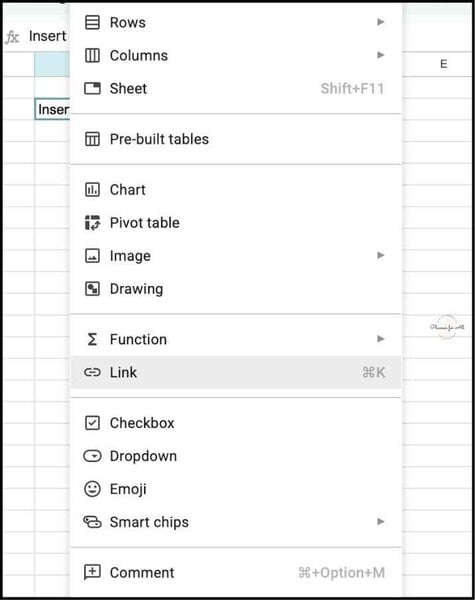
- Click the cell where you want to add the hyperlink.
- Go to Insert in the top menu.
- Click Link from the dropdown.
- A dialog box appears with two fields: Text (the display label shown in the cell) and Link (the destination URL). If the cell already has text in it, the Text field will be pre-filled with that text.
- Type or paste your URL into the Link field.
- Edit the Text field if you want to change what the cell displays, for example, changing a long URL to ‘View Report’ or ‘Click here’.
- Click Apply.
The cell text will appear blue and underlined, which is Google Sheets’ style to show cell contains a hyperlink. Hovering over the cell shows a preview of the URL below it.
If you don’t want to hunt the link button from toolbar, you can use right click too. Right click the cell where you want to insert hyperlink, and select Insert Link. It opens the same dialog box as above and you can follow the
2: Keyboard Shortcut Ctrl+K / Cmd+K
If you don’t want to do the manual steps of opening the toolbar then you can use keyboard shortcut too. This is the fastest method once you have it memorized, and it opens exactly the same dialog box as the Insert menu.
- Click the cell where you want to add the hyperlink.
- Press Ctrl + K on Windows or Cmd + K on MAC
- The link dialog box appears. Fill in the Link field with your URL and optionally edit the Text field.
- Click Apply.
Using keyboard shortcut is much faster if you need to add multiple hyperlinks in one sitting. I generally use keyboard shortcuts and it is a big time saver for me.
3: The HYPERLINK Function
The above two methods essentially help when you want to insert static links in your sheet. But if you want to build a dynamic link that goes to a specific portion of a spreadsheet or a website, then you can use Hyperlink function to insert dynamic links.
The HYPERLINK function is for situations where you need more control, when the link destination needs to be built dynamically from cell values, when you want the link to update automatically when data changes, or when you are building a template where links need to work formula-based rather than statically.
Basic syntax
Here is a basic syntax of Hyperlink function:
=HYPERLINK(url, [link_label])
url – required. This is the full URL of the link destination, enclosed in quotation marks. Make sure to include the protocol (https://).
[link_label] – optional. Similar to Display Text in above methods, this is the text displayed in the cell. If you don’t provide anything, it will display the full url as text.
How to use Hyperlink Function
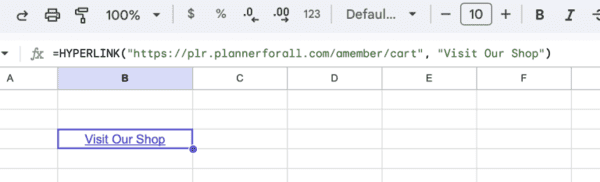
Say I want to insert link to my shop in a cell. I want to display ‘Visit our shop’ and link to my template store.
To do this, I will insert below formula in the cell:
=HYPERLINK(“https://plr.plannerforall.com/amember/cart”, “Visit our shop”)
It will create a link to my store and display
Dynamic example – building a link from a cell value
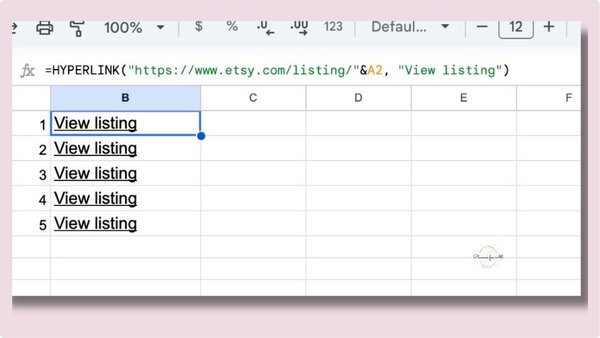
With the above method, we built a hyperlink to a static url. If you want to auto-generate links based on values in another column, you can do that as well.
Let’s say column A contains product IDs and we want to auto-generate Etsy listing links in column B. Use below formula in column B
=HYPERLINK(“https://www.etsy.com/listing/”&A2, “View listing”)
As you fill in different product IDs in column A, column B automatically generates the correct link for each one. This is where HYPERLINK becomes genuinely powerful, a static Insert menu link cannot do this.
Linking to a specific cell in another sheet using HYPERLINK
Let’s see another scenario where you want to link to cell A1 on a sheet called ‘Instructions’ within the same spreadsheet. We will use below formula to build the hyperlink:
=HYPERLINK(“#’Instructions’!A1”, “Go to Instructions”)
The # symbol tells Google Sheets this is an internal link. The sheet name is enclosed in single quotes (required if the sheet name contains spaces). The cell reference follows the exclamation mark.
For the full reference on HYPERLINK function parameters and edge cases, Google’s official HYPERLINK documentation covers all supported URL types and known limitations.
HYPERLINK vs Insert menu: Links added with the HYPERLINK function and links added via the Insert menu look the same in the cell, but they behave differently. A function-based link can be copied and will update if the formula references change. An Insert menu link is static — it stores the URL directly in the cell and will not update if cell values change. Use the function when links need to be dynamic; use the Insert menu when links are fixed.
Linking to Another Sheet or Cell Range Within the Same Spreadsheet
In the above method we saw how to link a cell in same sheet. Now let’s see how to hyperlink to another sheet (or tab) in the same spreadsheet. This is one of the most useful hyperlink types for template sellers. A navigation sheet with clickable links to each tab makes a multi-tab spreadsheet dramatically easier to use especially for buyers who are not confident navigating spreadsheets.
How to link to another sheet via the Insert menu
- Click the cell where you want to add the link.
- Go to Insert – Link (or press Ctrl+K / Cmd+K).
- In the link dialog, look at the list below the Link field. Google Sheets automatically shows the other sheets in your spreadsheet as clickable options.
- Click the sheet name you want to link to.
- Edit the Text field to give it a clear label for example, ‘Budget Dashboard’ or ‘Go to Instructions’.
- Click Apply.
Clicking this link in the spreadsheet jumps directly to that sheet. On mobile, it opens in the same view rather than a new tab.
How to link to a specific cell range
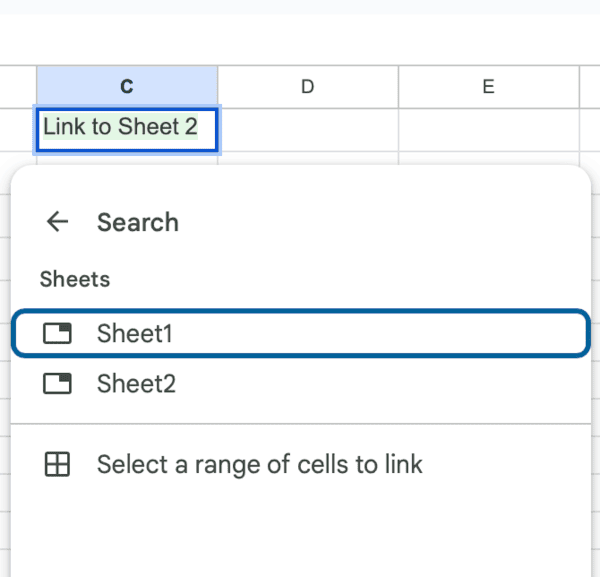
- Open the link dialog (Insert – Link or Ctrl+K).
- Below the list of sheet names, click ‘Select a range of cells to link’.
- In the field that appears, type the range you want to highlight for example, A1:D10 or Budget!B5:B20.
- Click OK, then Apply.
When someone clicks this link, Google Sheets jumps to that sheet and highlights the specified range. This is useful for directing buyers to a specific input area or calling attention to a key section of a complex spreadsheet.
How to Edit or Remove a Hyperlink
Now that you’ve inserted a hyperlink, let’s see how you can edit or remove it from your spreadsheet.
Editing a hyperlink
- Click the cell containing the hyperlink.
- A small popup appears below the cell showing the current URL and two icons – a pencil (edit) and a broken chain (remove).
- Click the pencil icon to open the link dialog and change the URL or display text.
- Click Apply to save changes.
Removing a hyperlink
- Click the cell containing the hyperlink.
- In the popup that appears, click the broken chain icon (Remove link).
- The hyperlink is removed. The display text stays in the cell as plain text — it is not deleted.
Removing a HYPERLINK function link
If the link was added using the HYPERLINK function, you cannot remove it using the popup method above. Instead, delete the formula from the cell entirely (press Delete) or replace it with plain text. The broken chain icon only works on links added via the Insert menu or keyboard shortcut.
Frequently Asked Questions
Q1. How to Open a Hyperlink Without Accidentally Editing the Cell
A. When you click a hyperlinked cell in Google Sheets, you enter edit mode rather than following the link. To follow the link:
Hover over the cell and a small URL preview popup appears below it.
Click the URL text in the popup to open the link in a new tab.
Alternatively, once the popup is visible, pressing Enter also follows the link. This is the standard Google Sheets behaviour for following hyperlinks and it catches new users off guard. Worth mentioning in your template’s instruction tab so buyers are not confused.
Q2. How do I add a hyperlink to a cell in Google Sheets?
Click the cell, then press Ctrl+K (Windows) or Cmd+K (Mac) to open the link dialog. Enter your URL in the Link field, optionally edit the display text, and click Apply. The cell will display blue underlined text indicating a clickable link.
Q3. How do I link to another sheet within the same Google Sheets file?
Open the link dialog (Ctrl+K or Insert → Link). In the list below the URL field, Google Sheets automatically shows all other sheets in your spreadsheet. Click the sheet name you want to link to, edit the display text if needed, and click Apply. Clicking the link in the spreadsheet will jump directly to that sheet.
Q4. What is the HYPERLINK function in Google Sheets?
The HYPERLINK function creates a clickable link using a formula: =HYPERLINK(“https://yoururl.com”, “Display text”). Unlike the Insert menu method, a HYPERLINK function can reference cell values to build links dynamically — for example, auto-generating links from a list of product IDs. See Google’s HYPERLINK documentation for the full syntax reference.
Q5. How do I make a hyperlink open in a new tab in Google Sheets?
Hyperlinks in Google Sheets open in a new tab by default when clicked from the cell popup. You cannot force a new tab or same tab behavior from within the spreadsheet, this is controlled by the browser and the user’s settings, not by the spreadsheet itself.
Q6. How do I remove a hyperlink but keep the text?
Click the cell containing the hyperlink. In the small popup that appears, click the broken chain icon (Remove link). The URL is removed and the cell text becomes plain text the text content is not deleted.
Q7. Why can’t I click my hyperlink directly in Google Sheets?
Clicking a cell in Google Sheets enters edit mode rather than following the link. To follow a hyperlink, hover over the cell and click the URL text in the small popup that appears below the cell. Alternatively, press Enter once the popup is visible.
Q8. How do I link to a specific cell in another sheet using a formula?
Use the HYPERLINK function with the internal link syntax: =HYPERLINK(“#’SheetName’!A1”, “Display text”)
The # tells Google Sheets this is an internal link. The sheet name goes in single quotes (required if the name contains spaces). The cell reference follows the exclamation mark. This jumps to cell A1 on the specified sheet when clicked.
Next Step
The shortcut to building your catalog
Now that you know how to insert hyperlinks in Google Sheets spreadsheets, you can save time by using ready-to-sell spreadsheets with smart hyperlinks already built in them.
Grab the Meal Planner Spreadsheet with hyperlinks, auto-updating grocery list, and intuitive meal plan. Just customize and sell it in your store.
Instead of spending a week on one template, you spend a few hours making one of the spreadsheet as yours and move on to the next one. That’s how a real catalog gets built.
Free PLR template
Not ready to commit yet? Grab a free PLR template here and see exactly how fast you can go from template to live listing.
Free guide & PLR Template
Turn Spreadsheets into Sales – Without the Overwhelm!
Get step-by-step guide and a FREE Google Sheet template you can customize & sell in your store today.