
You can add dropdown in Google Sheets by using any one of Insert, Data validation, and right click methods. It will open up a side window where you enter allowed inputs and click Done. This convert an open-text cell into a controlled cell.
A dropdown prevents typos, makes filtering, sorting, and running formulas reliable. All of these make your spreadsheet feel polished instead of rough.
In this post, I’ll cover how to add a dropdown in Google Sheets, how to color-code the options, how to build a dependent dropdown that changes based on a previous selection.
Let’s get started.
What Is a Dropdown in Google Sheets?
First, what is a dropdown and why do you need on in your Google Sheets? A dropdown in Google Sheets is cells with a list of preset options. The person filling the sheet picks one of the options from the list instead of typing freely.
Behind the scenes, this is built with Data Validation. Google Sheets checks every entry against the list you set and flags anything that does not match.
How is a dropdown displayed?
There are different ways in which you can display a dropdown. You can display it as a cell with arrow, as a chip, or even as a plain text.
As said earlier, Dropdowns are useful in any situation where a list of options appear across multiple places or when you want to control the allowed input. Benefit of using dropdown is, if you change the value in one place it reflects everywhere so you don’t need to modify it again and again.
How to Add Dropdown in Google Sheets
Step 1: Select the Cell or Range
Click the cell where you want the dropdown to appear. To add the same dropdown to multiple cells, click and drag to select the full range. If you want the dropdown in an entire column, click the column letter.
Step 2: Open Data Validation/Insert/Right Click
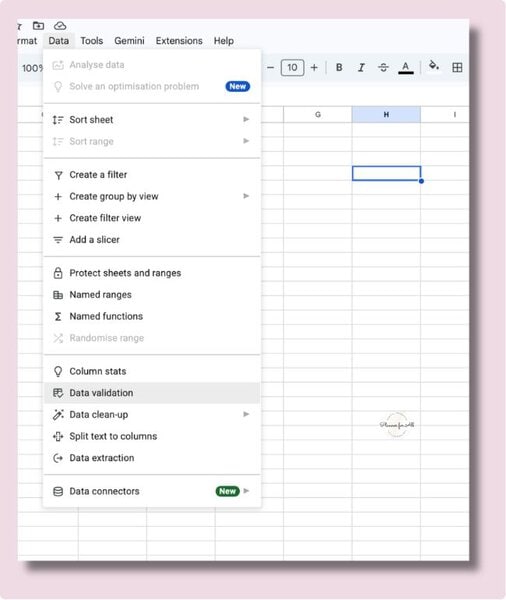
Next step is to add a dropdown. You can do this by either going to Insert – Dropdown, Data – Data Validation, or right click anywhere in the selected range and click dropdown. A sidebar opens on the right side of your screen.
Click Add rule. This is where you set up what the dropdown will contain.
Step 3: Set the Criteria to Dropdown
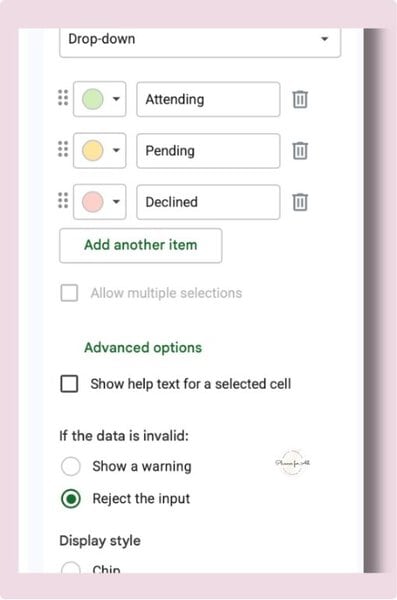
Under Criteria, open the dropdown (very meta, I know!) and choose Dropdown. A text area appears where you can type your list items.
Type each option on its own line. For a status column, for example, you might type:
- Pending
- In Progress
- Complete
- Cancelled
These become the options in the dropdown list.
Step 4: Set the Invalid Data Behavior
Scroll down in the sidebar and look for the option that says what happens if someone tries to type something that is not on the list.
- Show warning: the entry is accepted but flagged with a small red triangle. The person can override it.
- Reject input: the entry is blocked entirely. A message appears and the cell stays empty.
Step 5: Change Appearance
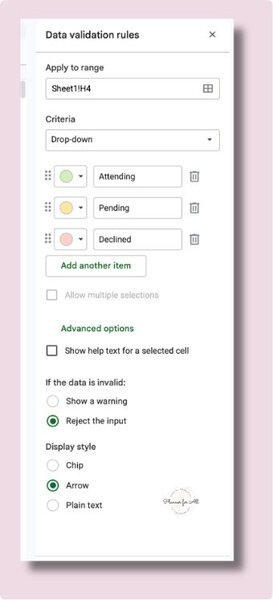
Scroll further down in Advanced Options section to Display Style. You will see different appearance style for dropdown.
- Chip: if you want to show dropdown option as chip
- Arrow: if you want to display dropdown as a plain cell with a small arrow on right side
- Plain text: displays dropdows as plain text with no visual indicator
Select the style that you want and click Done. The dropdown is live now. Click the cell and you will see your list to make a selection.
How to Create a Dropdown from a List in Another Range
While above method works well if you have a list of options are static and don’t depend on other cells. Sometimes you may want to create a list of options depending on value of another cell or column. This way, if you update list in one place, every dropdown that references it updates automatically.
Here is how to set it up:
- Type your list options in a column somewhere on your sheet, or on a separate tab. For example, put your status options in cells H1 through H4.
- Select the cell or range where you want the dropdown.
- Go to Data > Data validation > Add rule.
- Under Criteria, choose Dropdown (from a range).
- In the range field, type the range that holds your list. For example: H1:H4
- Click Done.
The dropdown now pulls its options from that range. Add a new option to the range and it appears in the dropdown immediately, without going back into Data Validation.
This method is useful if you want to create a guest tracker and don’t want to repeat guest names throughout the sheet. You can create a list with guest names in one place and refer it in dropdown throughout your sheet. Any change you make to guest list will automatically update dropdown everywhere.
How to Color Code a Dropdown in Google Sheets
Now that you’ve added a dropdown, how about you change the color of the cell depending on its value. Continuing with our guest tracker example, I want to color code guest status – anyone attending the event should be marked in green, declined in orange, and pending in yellow.
There are two ways you can do this. The first is built into Data Validation since Google added color chips in 2023. The second uses Conditional Formatting for more control.
Method 1: Color Chips in Data Validation
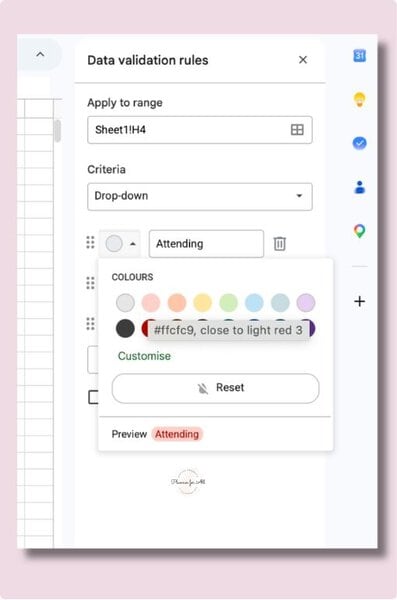
This is probably the easiest method. When you add a Dropdown through Data Validation, each option has a small color chip next to it. Click the chip to assign a color to that option. When someone selects that option, the cell background changes to the color you set.
This is the faster method and works well for simple status columns. The limitation is that it only colors the cell background, not the text color or any other style.
Method 2: Conditional Formatting
Conditional Formatting gives you full control over how a cell looks based on its value. Here is how to change the cell appearance based on dropdown selected value.
- Select the range that contains your dropdowns.
- Go to Format > Conditional formatting.
- Under Format rules, open the dropdown and choose Text is exactly.
- Type the exact option name, for example: Attending.
- Choose a formatting style – a green background and white text to indicate confirmed attendance
- Click Done, then click Add another rule to set up the same thing for each option.
Repeat for each option in your list. Each one gets its own rule with its own color. The cell changes color the moment someone selects a matching option from the dropdown.
Conditional Formatting also lets you apply the color across the entire row, not just the dropdown cell. Select the whole row range (for example A2:F2) when you set up the rule, and the full row changes color when the status changes.
How to Make a Dependent Dropdown in Google Sheets
Till now we saw how to display static or list of options in dropdown. Now, let’s see how to change the options of a dropdown based on value of another cell.
For example: I’m creating a menu planner for our sample guest tracker. I want to show different dish options for a selected course, for example, when I select Dessert dish column show show only dessert options.
This is a more advanced setup, but it is a time saver for user as they dont have to go through big list of options.
The cleanest way to build it uses the INDIRECT function inside Data Validation.
Step 1: Set Up Your Lists on a Reference Tab
Create a new tab called Lists (or similar). In that tab, set up a column for each category. The column header must exactly match the option in your first dropdown.
For example, if your first dropdown has the options Desserts, Soups, and Drinks, create three columns on the Lists tab: one with the header Desserts and a list of desserts below it, one with the header Soups, and one with the header Drinks.
Name each range using Named Ranges. Select the list under Desserts (not including the header), go to Data > Named ranges, and name it Desserts. Repeat for each column. The named range must match the column header exactly, including capital letters.
Step 2: Create the First Dropdown
In your main sheet, set up the first dropdown in column A with the category options (Desserts, Soups, Drinks) using the standard Data Validation method above.
Step 3: Create the Dependent Dropdown
Click the cell in column B where you want the dependent dropdown.
Go to Data > Data validation > Add rule. Under Criteria, choose Dropdown (from a range). In the range field, type:
=INDIRECT(A2)
Replace A2 with the cell that holds your first dropdown selection.
Click Done. Now when someone selects Desserts in column A, the dropdown in column B shows only the dessert options. Select Drinks and the list switches to drink items.
A note: INDIRECT is sensitive to the exact spelling of the named range. If the first dropdown shows “Desserts” and the named range is “desserts” (lowercase), it will not work. The name and the option must match exactly.
How to Edit or Remove a Dropdown in Google Sheets
You can edit a dropdown similar to how you added it.
To edit an existing dropdown, select the cell, go to Data > Data validation, find the rule in the sidebar, and click the pencil icon to edit it. Add, remove, or change options, then click Done.
To remove a dropdown from a cell, select the cell, go to Data > Data validation, and click the trash icon next to the rule. The rule is deleted and the cell returns to a plain input field.
To remove a dropdown but keep the currently selected value in the cell, remove the rule through Data Validation. The text stays in the cell, but the arrow disappears and the cell accepts free-form input again.
FAQ about adding dropdown
Can I add a dropdown to multiple cells at once?
Yes. Select the full range before you go to Data > Data validation. Every cell in the selection gets the same dropdown rule applied in one step.
How do I allow people to type their own value in addition to the list options?
If you want to let users enter their own value in addition to the list, t hen set the invalid data behavior to Show warning instead of Reject input. The cell will accept any typed value and show a small red triangle if it does not match the list. The warning is there to flag the entry, but it does not block it.
Can I use a dropdown value in a formula?
Yes. A dropdown cell holds whatever value was selected from the list. You can reference that cell in any formula the same way you would reference any other cell. =IF(A2=”Complete”,”Done”,”Pending”) works perfectly with a dropdown.
How do I make a dropdown list from a different sheet?
When you select Dropdown (from a range) in Data Validation, type the range including the sheet name. For example: Lists!A2:A10 references cells A2 through A10 on the Lists tab. If your tab name has a space in it, wrap it in single quotes: ‘My Lists’!A2:A10.
Do I need to include dropdown in my Google Sheets?
It depends if you’re creating to sell or personal use. If it is for your personal use then you probably don’t need it. If you’re creating spreadsheet to sell, then it might be a good idea to include it. Always check tools like eRank to find what people are looking for.
Next Steps
Adding drop-down makes your Google Sheets spreadsheet look professional. Some other ways are using checkboxes for two states values, locking cells to avoid people from modifying them.
If you want a head start on building templates to sell, the PLR Google Sheets library at Plannerforall has done-for-you spreadsheet templates with dropdowns, formulas, and commercial use rights included. Customize with your branding and list it the same day.
Free guide & PLR Template
Turn Spreadsheets into Sales – Without the Overwhelm!
Get step-by-step guide and a FREE Google Sheet template you can customize & sell in your store today.
