
Today I’m back with a quick and short Google Sheets tutorial. I will show you how to add checkboxes in Google Sheets and how you can insert check marks.
Checkboxes make a Google Sheets template feel interactive. A buyer clicks a box, it turns from empty to checked and if you have set up conditional formatting, the whole row changes color or strikes through automatically. That kind of built-in automation makes it easy for user to get valuable information in a glance without going through sheets of data.
The Difference Between a Checkbox and a Check Mark in Google Sheets
Before we start with how to insert checkboxes, I want to take a minute to point out difference between checkboxes and check marks. Both of these look similar but work very differently.
A checkbox is an interactive element. Clicking it toggles between TRUE and FALSE (or custom values you set). You can use it in formulas to count completed tasks, trigger conditional formatting, or filter rows. Buyers interact with it directly.
A check mark (tick mark) is a text character – a symbol typed or pasted into a cell. It looks like a checkmark but does not change when clicked. You can use it when you want a visual indicator that stays fixed, like a legend key or a pre-filled status column.
You can use both in your templates – checkboxes for interactive to-do lists or trackers, and static check marks for things like feature comparison tables or delivery confirmation columns.
Let’s see how to insert checkboxes in Google Sheets.
How to Add Checkboxes in Google Sheets
Adding checkboxes is pretty simple and straight-forward.
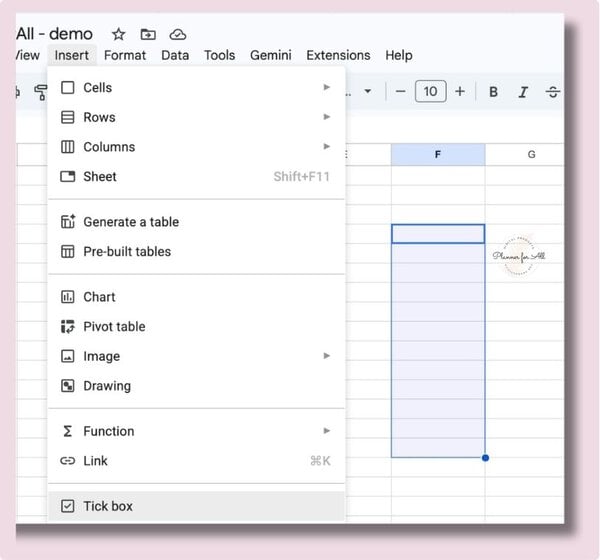
Step 1: Select the Cells
Click the cell where you want a checkbox. To add checkboxes to multiple cells at once, click and drag to select a range, or hold Ctrl (Cmd on Mac) and click individual cells. You can select an entire column if you want every row in that column to have a checkbox.
Step 2: Insert the Checkbox
Go to Insert in the top menu and click Checkbox. That is it, Google Sheets inserts a checkbox into every selected cell instantly. Each checkbox starts unchecked. The cell value is FALSE when unchecked and TRUE when checked.
Step 3: Test It
If you click any checkbox, it toggles to a checked state and the cell value changes to TRUE. Click it again and it goes back to FALSE. If you look in the formula bar while a checked box is selected, you will see TRUE.
How to Use Checkboxes in Formulas
Because each checkbox stores TRUE or FALSE, you can use standard Google Sheets functions to work with them.
1. Count How Many Boxes Are Checked
If your checkboxes are in column A (rows 2 to 20), use:
=COUNTIF(A2:A20, TRUE)
This counts every cell in that range that is checked. Add a label next to it like “Tasks completed:” and your buyers instantly see their progress without doing any math.
2. Calculate Completion Percentage
=COUNTIF(A2:A20, TRUE) / COUNTA(A2:A20)
Format that cell as a percentage and it shows how much of the list is done. Apply a progress bar with conditional formatting on the same cell for a visual indicator buyers will screenshot and share.
3. Sum Only Checked Rows
If column B has values (costs, hours, quantities) and column A has the checkboxes:
=SUMIF(A2:A20, TRUE, B2:B20)
This only adds up the values in column B where the matching checkbox in column A is checked. This is useful for budget trackers, grocery lists with prices, or project logs where buyers want a running total of selected items.
How to Set Custom Checkbox Values
By default, a checkbox stores TRUE or FALSE. But you can easily change those values to anything you want, whether it’s “Complete” / “Pending,” “Yes” / “No,” “Approved” / “Rejected.” Depending on your use case, this can make your formulas and filter views read more naturally.
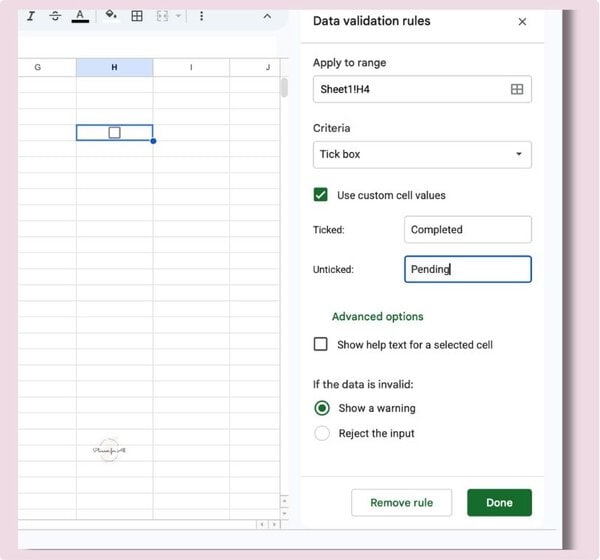
Steps to set custom values:
- Select the checkbox cells
- Go to Data > Data validation
- In the side panel that opens, click Checkbox
- Check the box that says “Use custom cell values”
- Enter your Checked value (for example: Complete) and your Unchecked value (for example: Pending)
- Click Done
Now when a buyer checks the box, the cell stores “Complete” instead of TRUE. Your COUNTIF formula would then be =COUNTIF(A2:A20, “Complete”) to match.
How to Add Conditional Formatting When a Checkbox Is Checked
In the above steps, you’ve added checkboxes. You can also set up conditional formatting based on the value of checkbox.This is very useful if you’re creating a tracker where you want to highlight or strike a task once it’s done.
How to add conditional formatting based on checkbox value:
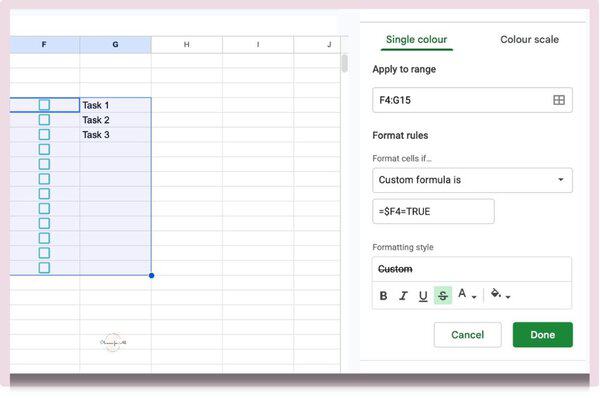
- Select the full data range – both the checkbox column and the text columns you want to format (for example, A2:C20)
- Go to Format -> Conditional formatting
- Click Add another rule
- Under “Format cells if,” choose Custom formula is
- Enter the formula: =$A2=TRUE
- Choose your formatting: strikethrough, a lighter fill color, or both
- Click Done
The dollar sign before A keeps the column reference fixed while the row number changes as the rule checks each row. Without it, the rule breaks on rows below the first.
If you used custom values instead of TRUE/FALSE, update the formula to match – for example =$A2=”Complete”.
How to Insert a Check Mark in Google Sheets (Static Tick Mark)
While checkboxes make Google Sheets interactive, sometimes you do not need a clickable checkbox. You just want a tick mark symbol in a cell. Here is how you can insert check mark.
Copy and Paste a Symbol
This is probable the fastest method to insert a check mark. You basically copy check mark character and paste it directly into the cell. To copy to other cells, just copy the cell and paste it wherever you need the same symbol.
FAQ on how to add checkboxes in Google Sheets
How do I delete a checkbox in Google Sheets?
Select the cell or cells with the checkboxes and press Delete or Backspace. This removes the checkbox and clears the cell. If you only want to clear the checked state (reset to unchecked) without removing the checkbox, press the spacebar while the cell is selected or just click the checkbox to uncheck it manually.
Can I add a checkbox to an entire column?
Yes. Click the column letter at the top to select the whole column, then go to Insert -> Checkbox. Every cell in that column will have a checkbox.
Why does my conditional formatting not apply to all rows?
This is most likely due to conditional formula. If you miss $ in conditional formula, the column reference shifts as the rule moves down the rows. Add a dollar sign before the column letter ($A) to keep it fixed. The row number should stay flexible (no dollar sign) so the rule checks each row individually.
How do I make a check mark appear automatically when a condition is met?
You can use the IF function with CHAR. For example, to show a checkmark when the value in B2 is “Done”:
=IF(B2=”Done”, CHAR(10004), “”)
How to change color and size of checkbox?
Use text settings to change the font color and size of checkboxes as detailed in
Next Steps
While checkboxes are one of the easiest ways to make your spreadsheets interactive, they work best when paired with the other structural features that make a template feel professional:
- Lock your formula cells and headers so buyers cannot accidentally break the sheet
- Use conditional formatting to highlight rows, add color coding, or apply strikethrough automatically
- Freeze your header row so column labels stay visible as buyers scroll
- Use dropdown in your spreadsheet to control input in a cell
Once your template is ready, the next step is getting it listed. Check out How to Sell Google Sheets on Etsy for a full walkthrough of setting up your shop and writing a listing that converts.
And if you would rather start with a done-for-you base than build from scratch, take a look at our PLR Google Sheets templates, they are already formatted and ready to customize and protect before you sell.
Free guide & PLR Template
Turn Spreadsheets into Sales – Without the Overwhelm!
Get step-by-step guide and a FREE Google Sheet template you can customize & sell in your store today.
