
ThriveCart and Kit integration will help you to seamlessly sell your products, nurture your audience, and trigger Kit rules based on ThriveCart action.
If you want to sell your digital products through ThriveCart and move the customers into Kit for nurturing, then you need to know how to integrate ThriveCart and Kit (formerly Convertkit). This helps to create an integrated system for your checkout to email system so you can take action when someone purchases or refunds a product, or you can even trigger abandoned cart.

Key Takeaways
- Use a consistent naming convention for your tags, forms, and sequences to prevent list clutter and ensure you can easily identify automation triggers.
- Map each individual ThriveCart product to a specific, unique action in Kit to keep your buyer paths clean and manageable.
- Always test your checkout flow with a real or test transaction before going live to confirm that subscriber data, tags, and sequences fire correctly.
- Build a repeatable setup process for every new offer, allowing you to scale your business without needing to rebuild your entire automation logic each time.
What you need before you connect ThriveCart and Kit
Before you touch the integration settings, get the basics in place. You will need your ThriveCart account, your Kit (formerly known as ConvertKit) account, and your unique API key to bridge the two platforms.
You can sign up for a lifetime ThriveCart account (affiliate link).

Once you have your tools ready, decide what action you want them to take in Kit. Here are few of the actions you can take to move customers farther in your business environment.:
- Tags: Use tags when you want to mark behavior or ownership. A tag works well for things like “bought course A,” “joined membership,” or “purchased upsell.”
- Sequence: Use sequence when you want the buyer to enter a specific email path right away, such as a welcome series or onboarding emails.
A simple rule for segmentation helps here:
- Tag the buyer when you mainly need organization.
- Form the buyer when you want them added to a list tied to a lead magnet or signup.
- Sequence the buyer when you want an immediate email journey after purchase.
Map each ThriveCart purchase to a clear next step
Earlier, I covered how to create a product in Thrivecart. This is the last step of that process. You’re configuring what happens after the sale and how do you add them to your email provider.
For example, a buyer of a template bundle might get:
- A purchase tag in Kit
- A short welcome or delivery sequence
- A separate tag if they take an upsell
The simplest way to integrate ThriveCart and Kit
You need to integrate Kit with your ThriveCart account in order to use available post purchase Kit automation options. Follow below steps to integrate Kit and ThriveCart.
How to Integrate Thrivecart and Kit
1. Log into your Thrivecart account
2. Go to Integrations. At the time of writing this, you can find it on the left side navigation menu

3. Search and select Kit from the integrated platforms
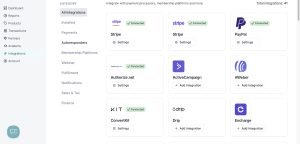
4. Enter your API Key and API Secret from Kit account to authorize the account
Follow the video in the Thrivecart portal on how to get your Kit API Key and Secret.
5. Once authorized, you can now select Kit tags/sequences in post-purchase Automations.
6. Go to product you are selling – click Edit – then click Automation
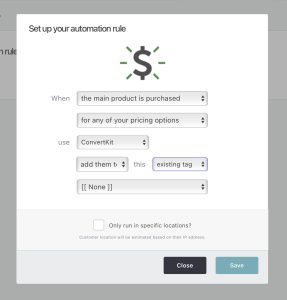
Select trigger condition for the Automation from the ‘When’ dropdown. You can select when the main product is purchases, refunded, payment is declined, or cart is abandoned. You can also select bump offers as trigger conditions.
In the Use dropdown select Kit (Convertkit). Then select whether to add/remove a tag to the customer. Similarly, you can also select a Kit sequence to which the user should be added.
My ThriveCart & Kit Integration Test Flow
Now the tech part is done, it’s time to test the full flow. What I generally do is, I create a 100% discount code. Then use one of my personal emails to signup for the product using the discount code. This simulates real sale flow and triggers post-purchase sequence.
Then I make sure that:
- Access to the proper ThriveCart product is granted
- My test account receives the email as intended
- Test account is successfully tagged in Kit
- Correct buyer email sequence is triggered
- If I make a purchase again, it wont trigger all of the above.
This test flow helps me to identify broken steps in the integration and fix them easily.
Common ThriveCart & Kit integration mistakes
While ThriveCart and Kit provide a simple integration, there may be times when you run into issues and can’t figure out what is broken. Check out these common mistakes and how to avoid them to have a smooth ThriveCart & Kit process.

Why tags and automations sometimes do not fire
If tag is not fired, then start with ThriveCart. Check proper tag is set for the products. Remember, you need to set Automation for each product, so each ThriveCart product needs to have its own automation step. If you set it for one product and tested with another, it won’t work.
If tags are proper, then check email address. A mismatch between the checkout email and the Kit subscriber email can split the buyer path.
How to avoid sending buyers into the wrong sequence
Check the automation to confirm user is added to the right Kit email sequence. You can add a customer to Kit email sequence either from Kit or from ThriveCart You can add a tag from ThriveCart, then in Kit, add a rule to start a sequence when that tag is added. Or you can directly add customer to sequence from the ThriveCart.
What to check when buyers are not receiving emails
If the buyer is tagged but still not getting emails, look at deliverability first. The message may be landing in spam, promotions, or another tab. This happens a lot with new sending domains or unfamiliar sender names.
If you keep seeing missed emails, trace the path one step at a time. Start with the ThriveCart sale, then the Kit tag, then the email delivery. That order usually shows where the break is.
Frequently Asked Questions About ThriveCart and Kit
Do I need to use Zapier to connect ThriveCart and Kit?
No, you do not need third-party tools like Zapier for basic integrations. ThriveCart offers a native integration with Kit that allows for real-time synchronization of customer data, tags, and sequences.
How many tags should I create per product?
Ideally, you should keep it simple by using one primary purchase tag per product. If you have upsells or unique customer journeys, you can add specific tags for those, but avoid over-tagging, which can make your segmentation harder to maintain later.
What should I do if a customer does not receive their welcome email after purchasing?
First, check if the subscriber record exists in Kit and if they have been assigned the correct tag. Verify that your automation sequence is active and that the subscriber meets all requirements, such as confirmed status, before assuming there is a technical error.
Conclusion
While ThriveCart is a powerful tool to sell digital products, integrating it with Kit gives you flexibility to nurture your audience, connect with them, and offer discount or flash sales, creating a powerful sales ecosystem.
Wondering what kind of products you can sell on Thrivecart? If you’re still figuring out what to build and sell, that comes first. Grab a free PLR spreadsheet template, customize it with your branding, and list it on Etsy.
