
You spent a lot of time building a Google Sheets template that you’re proud of. The formulas work, colors are on point and you’re happy with the way it looks. But what happens when someone buys it, accidentally types in a formula cell? They then email you to say it is broken and not working as expected. What follows is customer support queries that can be easily avoided.
Knowing how to lock cells in Google Sheets prevents exactly this scenario, saving you hours of customer support queries.
Why Lock Cells in Google Sheets

Making spreadsheets was a big part of my corporate job, and one of the early things told was to lock the cells from modification. Though I used Excel at the time, but still people knew how easily a formula can be messed up.
Locking a cells means buyer cannot modify a particular cell. And, it is not that complicated once you know where to find it. This tutorial walks you through every method, step by step.
What does “Lock a Cell” Mean in Google Sheets
A very quick clarification before we begin. When someone says “lock cells” in Google Sheets, they usually mean one of the following two things:
1. Protect a range or sheet – this prevents other people from editing specific cells. It is a permission-based lock. This is what you want when delivering a template to buyers.
2. Freezing a row/column – this freezes (or locks) rows/columns so that they don’t move when you scroll the spreadsheet. “Locked” row/column will always be visible even when scroll to other parts of spreadsheets. This makes it easy to note headers when seeing the details
Both are called “locking” depending on who you ask. In this post we will cover protecting a range or sheet lock.
How to Lock Specific Cells or a Range
This is the most common use case. You want to protect certain cells that may contain formulas, headers, or anything else you don’t want buyers to modify.
Step 1: Select the cells you want to lock
Click and drag to highlight the range you want to protect. You can select a single cell, a column, a row, or any continuous range like B2:D10.
Step 2: Open the Protect Range panel
Go to Data -> Protest Sheets and Ranges
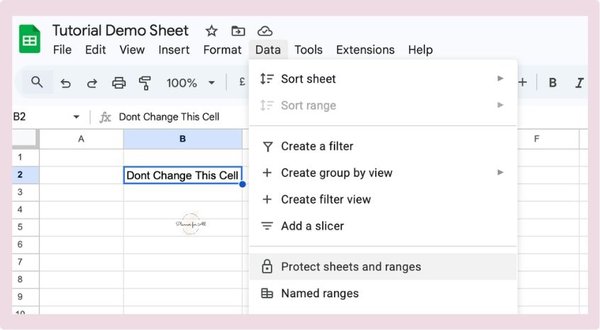
Step 3: Add a description (optional but recommended)
A sidebar will open on the right. There is a field at the top where you can add a description. Use it to give an intuitive name that will make it easy for you to find it later. Something like “Monthly Dashboard” or “Header row” will save you confusion and time later when you have multiple protected ranges stacked up in the same sheet.
Step 4: Click “Set permissions”
This opens the permissions dialog. You have two choices here:
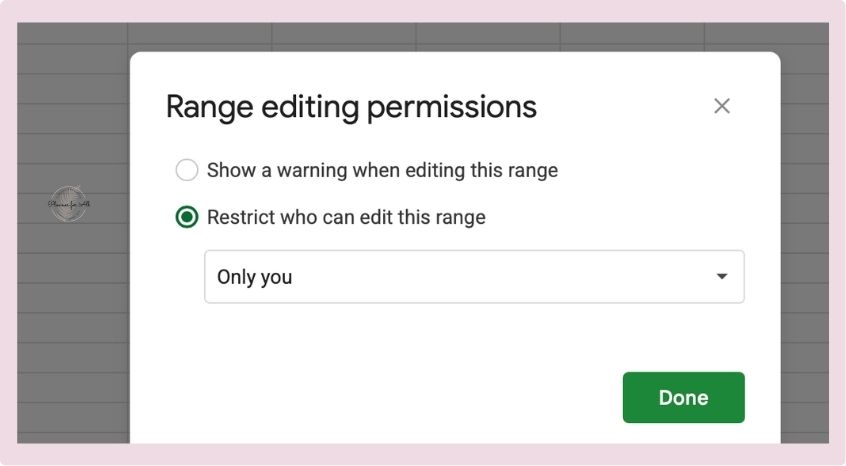
Show a warning when editing this range – this does not block anyone from editing. Anyone who tries to edit those cells will see a dialog box asking them to confirm before proceeding. If the user clicks Ok, they can make the changes. It does not block the edit, but it forces a moment of intentionality.
This is recommended if you sell templates and want to warn users but not limit them completely from making any changes.
Restrict who can edit this range — this is the actual lock. Only people you specifically allow can edit the protected cells. This is recommended if you don’t want buyers to modify the value of the cell.
Step 5: Choose who can edit
Under “Restrict who can edit this range” you will see a dropdown with these options:
- Only you – Buyers get a copy and become the owner of their copy, so only they will be able to modify those cells. Keep in mind, that they may accidentally mess up a formula.
- Custom – lets you add specific email addresses. Useful for collaborative work or team sheets where certain people need edit access to the protected cells.
Step 6: Click Done
Click Done. Your selected cells are now protected. A faint striped pattern will appear over them when you click View → Show → Protected ranges to confirm everything is set correctly.
When a buyer purchases your Google Sheets template and makes their own copy, they become the owner of that copy. The lock protects against accidental edits, not deliberate ones.
How to Lock an Entire Sheet
The above method works if you have few cells in a sheet to protect. Sometimes you may have more cells to protect than editable. In such cases it makes sense to lock the entire sheet and only allow modify few cells.
To give an example, you are creating an event planner. You may have a dashboard that shows their progress pulling data from different tabs. You want users to only enter the date but everything else is automatically updated. You can lock the entire sheet, leaving the date cell as an exception. So, user can select the date but will be prompted for other cells.
Here are the steps to lock the entire sheet:
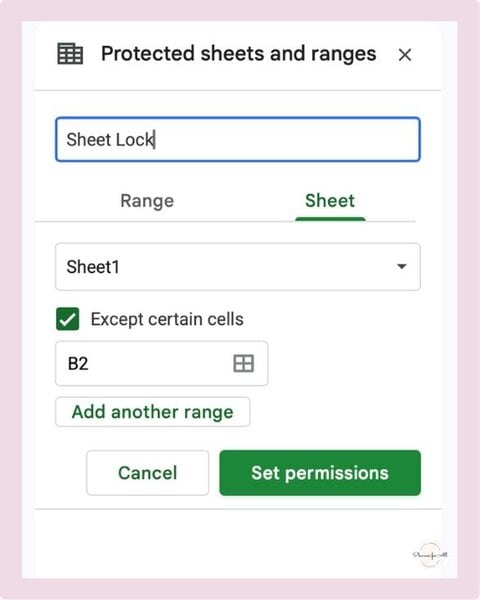
- Click Data -> Protect sheets and ranges
- In the sidebar, instead of Range select click the Sheet tab
- Give a lock name
- Select sheet from the dropdown
- Similar to above step, click Set permissions and choose your access level
- Click Done
There is a checkbox says “Except certain cells” below sheet dropdown. Tick that, and then select the cells you want to keep editable. This will lock the entire sheet while keeping selected cells editable.
If you lock the entire sheet, a lock appears showing that particular tab or sheet is locked.
How to View and Manage Your Protected Ranges
Once you have added multiple protections across a sheet, it can get hard to keep track of what is locked and what is not. Google Sheets gives you two ways to review this.
See all protected ranges
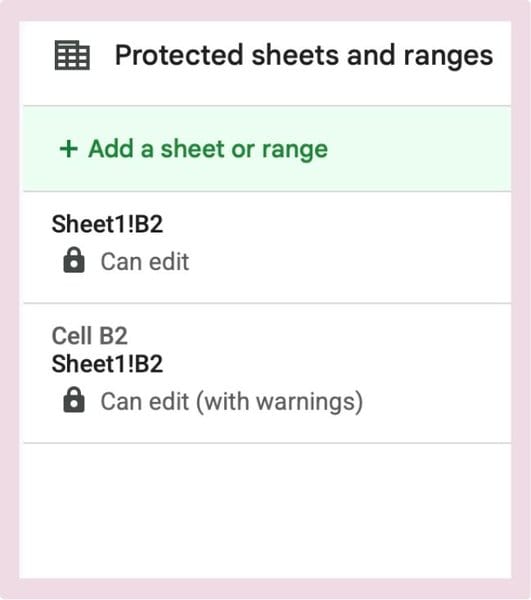
Go to Data -> Protect sheets and ranges. The sidebar will list every protection you have added in this spreadsheet, with the description you gave it (which is why adding descriptions in Step 3 matters). Click any one to edit the range or permissions.
Visualize which cells are protected
Go to View -> Show -> Protected ranges. A striped background will overlay all your protected cells. This is the fastest way to do a visual check before delivering a template – you can immediately see if you accidentally locked an input cell or left a formula cell unprotected.
Delete a protection
Open the sidebar via Data -> Protect sheets and ranges. Find the protection you want to remove, click on it, and click the trash icon. The cells will go back to being editable by anyone with sheet access.
Benefits of locking cells
What benefit do you get by locking cells? For spreadsheet sellers, it directly affects the buyer experience.
Keep the product working. When someone pays for a product, they expect to work correctly. If they accidentally overwrite a formula in the first five minutes, that is a bad experience they will blame on the template, not themselves.
It reduces support requests. An extension of above. When something doesn’t work, buyers raise support request that “something broke.” Locking your cells eliminates most of these before they happen.
Polished product. Most of the best-selling Google Sheets templates on Etsy, protect their formula cells. It gives a polished look to your products.
You can also use to do a final check before listing any template. Use View -> Show -> Protected ranges to confirm formula cells are locked. This will easily give you what fields are protected and what not.
Ready to Protect Your Template?
Protecting Sheets in Google Sheets is one of the small steps that go a long way to give a polished feel to your product. It enhances user experience and reduces customer support.
Once your template is locked and ready to go, the next step is getting it listed. Check out How to Sell Google Sheets on Etsy for a full walkthrough of setting up your shop and writing a listing that converts.
And if you would rather start with a done-for-you base than build from scratch, take a look at our PLR Google Sheets templates, they are already formatted and ready to customize and protect before you sell.
Free guide & PLR Template
Turn Spreadsheets into Sales – Without the Overwhelm!
Get step-by-step guide and a FREE Google Sheet template you can customize & sell in your store today.
